

Installing certificates for Android
Install the root certificates
1. Download the root certificates Russian Trusted Root CA → extract the certificates from the archive → go to “Settings” → enter “Certificate” → select in the search → select “Certificate CA”
If the “Specify the name of the certificate” window appears → enter Russian Trusted Root CA → select " VPN and applications " → Click “ОК”
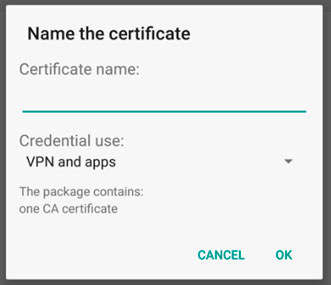
2. If a warning opens → click “Install anyway”
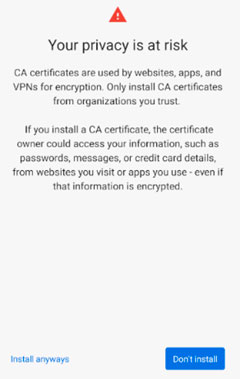
3. Enter the device’s passcode → click “Confirm” → in “Downloads” select Russian Trusted Root CA.cer
4. The root certificate will be installed. The notification “The CA certificate is installed” will appear
5. Download the TCI root certificate → repeat the installation in the same way as the certificate Russian Trusted Root CA
Install intermediate certificates
1. Download the intermediate certificates → extract the certificates from the archive → go to Settings → type “Certificate” in the search → select “CA Certificate” → in the warning, click “Install anyway” or “Install anyway”
If the window “Specify the name of the certificate” appears → enter Russian Trusted Sub CA → select “VPN and applications” → click “OK”

2. Enter the device’s passcode → click “Confirm” → in “Downloads” select Russian Trusted Sub CA.cer
3. The intermediate certificate will be installed. A notification “CA certificate installed” will appear at the bottom of the screen
The installation procedure must be repeated for each intermediate certificate
Check that the installation was successful.
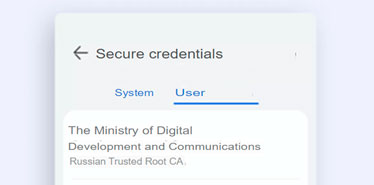
Go to Settings → in the search, enter “Trusted Certificates” or “Trusted Credentials” → go to the “User” tab
The installed certificates of the Ministry of Digital Development and Communications will appear in the list: root and intermediate
Clear the browser cache on the device you are accessing from. This is necessary to work correctly with resources protected by the Ministry of Digital Development and Communications Security certificates
Download the intermediate TCI certificate → repeat the installation in the same way as the certificate Russian Trusted Sub CA