

Installing certificates for iOS
Installing a configuration file containing root and intermediate certificates
1. Download the profile for Apple iOS → click on “Allow”
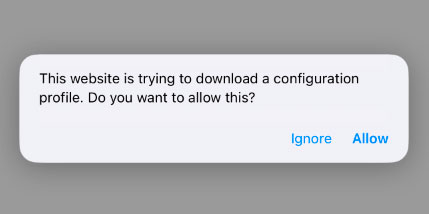
If the process is running correctly, a message about downloading the file will appear. Otherwise, you will see a window with a set of text characters. If this happens, reopen the page in the Safari browser and download it again
2. Go to “Settings” → select “Profile uploaded” → in the “Profile Setup” window, click “Install”. Install the certificates immediately after downloading, otherwise they will be deleted automatically

3. Enter the password for the device → in the “Warning” window, click “Install” → in the “Profile Installation” window, select “Install” → in the “Profile installed” window, click “Done”
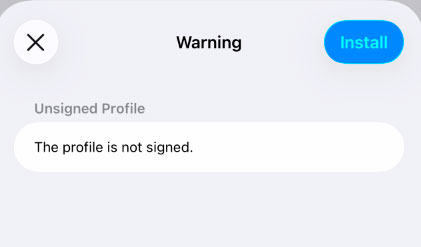
After installation, enable trust in the certificates of the Ministry of Digital Services
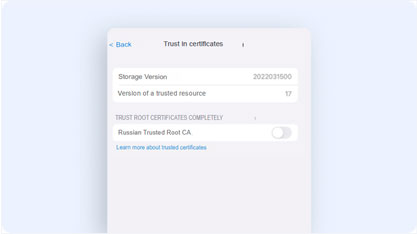
4. Enable trust to all root certificates according to the instructions for the Russian Trusted Root CA. For other certificates, the trust procedure is similar
5. Go to “Settings” → select “General” → “About this device” → “Certificate Trust” → enable Russian Trusted Root CA certificate trust by dragging the slider to the right
6. In the “Root Certificate” notification, click “Next”
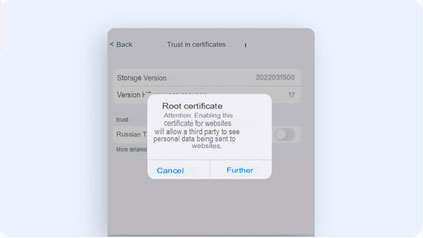
The trust activation procedure must be performed for each root certificate
Clear your browser’s cache
This is necessary to work correctly with resources protected by certificates
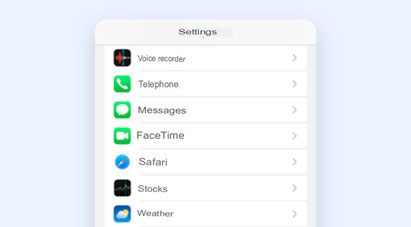
7. Go to “Settings” → select Safari
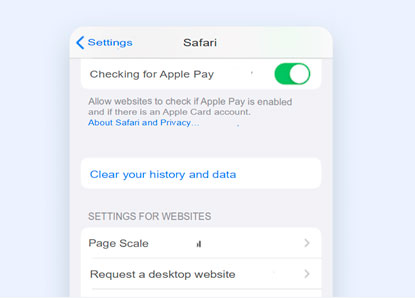
8. In the “Clear History and Data” window, click “Clear” → select “Close Tabs”

9. Download the TCI root certificate → Click “save” → click “open in service” → click “open Downloads folder” → click on the “ECDSA-a1.crt” certificate. Next, to install this certificate, repeat the steps specified in paragraphs
10. Download the intermediate TCI certificate → click “save” → launch the Files application → click “open Downloads folder” → click on the certificate “ECDSA-16-280.cer”. Next, to install this certificate, repeat the steps specified in paragraphs